
World Forge · Development build · Availability
Documentation
Create your first World Forge world
Create and inspect a small chunked world with deliberate tile scale and floor identity.
Goal#
Create a 2×2-chunk practice world, open one chunk and save its authored assets.
Before you begin#
Use a disposable content folder and the requirements for your installed Forge copy. The standalone development guide specifies Unity 6000.5.8f1, Universal RP 17.5.0, and the built-in Asset Bundle and Physics modules, both version 1.0.0. Install the dependencies listed beside the exported package before importing it. Core projects should use their included Forge copy and Core's own requirements.
Set it up#
- Open Tools → Green Cloak Games → World Forge → Open World Forge. The legacy Tile Tick World Editor → Open Editor menu opens the same editor.
- Click Create World on the welcome screen, or New in the toolbar.
- For this practice example, set World Size (Chunks) to 2 × 2, Chunk Size (Tiles) to 8 × 8, and Tile Size to 1. Set Underground Levels and Above-Ground Levels to 1 each, with Floor Height 3. These are tutorial choices; the creation form defaults to an 8 × 8 world with three levels above and below ground.
- Click Choose Location & Create and choose a new folder under your own project content. The tool saves the world and independent chunk assets. The new world begins with Classic Tiled presentation.
- In the World workspace, click a chunk to select it and double-click to open it. Ctrl-click adds or removes chunk addresses from the selection. Find Chunk accepts integer X/Z chunk coordinates.
- Use the toolbar's Floor selector to inspect floor 0. Negative floors are underground and positive floors are above ground. Available levels do not automatically create terrain or constructed floors on those levels.
- Click Save after authored edits. Saving assets does not publish runtime content; use the separate Publish workspace when ready.
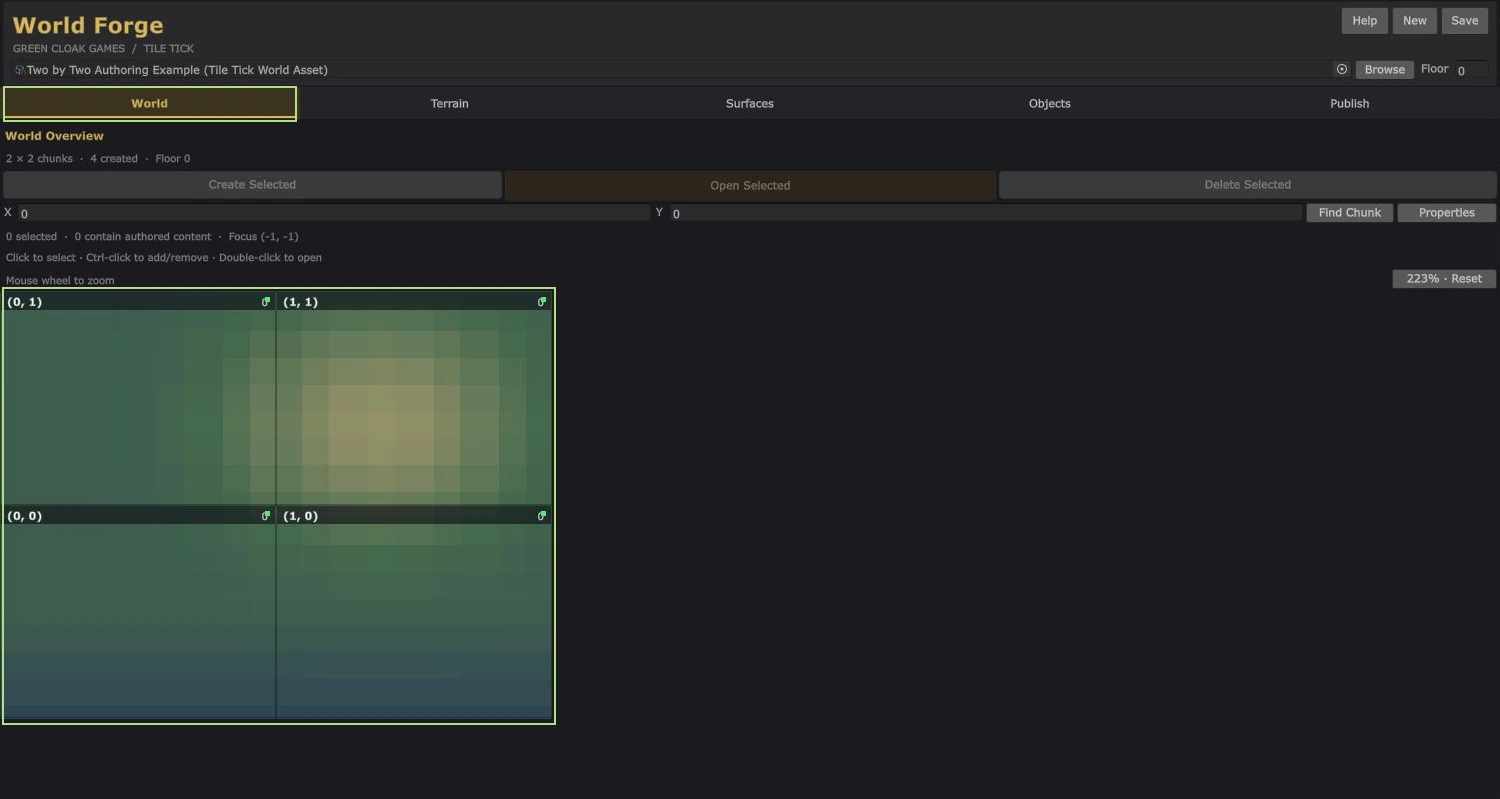
What you should see#
The saved world has four 8 × 8-tile chunks. At Tile Size 1, each chunk spans 8 × 8 world units. The editor can open a chunk for authoring, and the saved assets remain available after closing the window. No runtime publication is created by Save.
If something goes wrong#
- A chunk address is an index, not a world-space distance. Chunk width in world units equals Chunk Size (Tiles) × Tile Size.
- A signed floor is a logical identity; sculpted terrain can vary in physical elevation within that floor.
- Neighbor Radius controls the editor's loaded context. It does not configure runtime streaming distances.
- Keep Forge Tile Size aligned with Core's
GridManager.tileSizewhen integrating the two. Structural scale changes require checking placements and rebuilding published content. - Importing standalone Forge over Core's included Runtime/Editor assemblies can produce duplicate assembly conflicts.
Next steps#
Import, sculpt and paint terrain, then place objects and author floors. Keep your first world small until you have completed a test publication.