
World Forge · Development build · Availability
Documentation
Bake and publish a world
Distinguish scene baking from separate visual-client and headless-collision publications, then configure streaming distances.
On this page
Goal#
Bake a practice world into a scene or create matching runtime publications for graphical and headless consumers.
Before you begin#
Save a valid practice world first. The publication UI requires Windows 64-bit as the active target in Unity Build Profiles. Keep runtime output folders outside Assets, with a separate folder for each role.
Set it up#
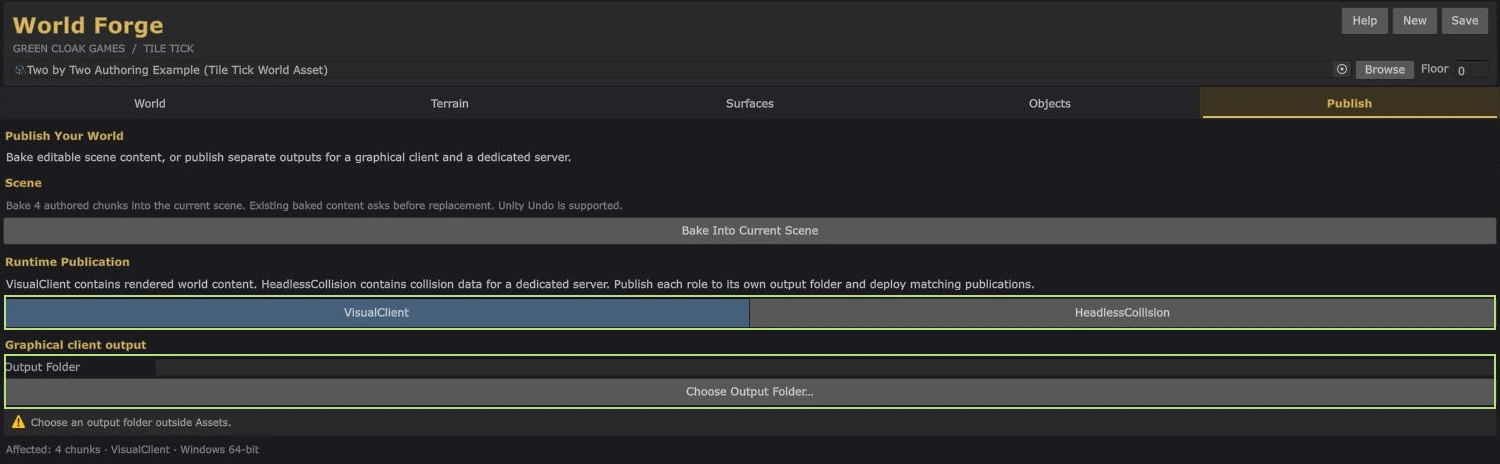
- Save the world/chunks and open Publish. For a scene-based test, click Bake Into Current Scene and review the confirmation. This adds generated content to the current scene, marks it modified and supports Undo. Save the scene separately. It does not install an external streaming publication.
- For runtime content, choose VisualClient, select its output folder outside
Assets, then click Publish VisualClient and confirm. - Under World → Properties, enable Mesh Colliders before collision publication. Return to Publish, choose HeadlessCollision, select a different output folder and click Publish HeadlessCollision.
- Keep the complete publication for each role: catalog and companion bundles. Both roles must come from the same authored revision, with matching
WorldIdandSourceHash. Build the bundles for the actual consumer target; Windows output does not establish WebGL compatibility. - Install each complete role folder at the path expected by its consumer. For Core, continue with the Core streamed-world guide, which binds matching catalogs and gameplay descriptors. Do not hand-edit identity hashes to combine different publications.
- Test chunk entry, release and re-entry; missing bundles; retries; world restart; and shutdown on your target. Use a small world to check these cases before publishing a larger one.
Streaming visual and collision distances#
TileTickWorldStreamer radii count chunks. A square load radius r can request (2r + 1)² chunks per requester. Retention keeps already loaded chunks while the requester moves; it does not prefetch the full retain radius. Retention must be at least the load radius. Visual and collision roles can have different demand.
| Serialized field | Default | Meaning |
|---|---|---|
loadingRadius | 1 chunk | New content demand around a requester. |
retentionRadius | 2 chunks | Keeps already loaded content. |
buildsPerFrame | 1 | Maximum chunk preparations started per frame. |
buildBudgetMilliseconds | 8 ms | Preparation scheduling target; an indivisible step may exceed it. |
unloadGraceSeconds | 2 seconds | Delay before releasing unwanted chunks. |
retryDelaySeconds / automaticRetries | 1 second / 2 retries | Recovery attempts after preparation fails. |
surfaceCacheBudgetMiB | 512 MiB | Budget for retained shared surface resources. |
maximumResidentChunks | 64 | Maximum runtime chunks resident per streamer. |
contentLoadTimeoutSeconds | 60 seconds | Time before a content load fails. |
These generic defaults are not a performance benchmark or the full Core configuration. Core exposes separate client-visual and server-collision settings on its streamed-world definition.
What you should see#
A scene bake creates scene content. Runtime publication creates complete role-specific catalogs and bundles matching one world/source revision. Graphical consumers load presentation; headless consumers use collision data without requiring water renderers or materials.
If something goes wrong#
- Copying
catalog.jsonalone omits companion content. - Disabled Mesh Colliders block collision-role publication. An output folder inside Assets, a shared output folder for both roles or an unsupported active target also blocks the UI.
- Changing scale, terrain, water or placements makes an earlier publication stale. Rebuild matching roles and gameplay descriptors.
- Standalone development release notes record a graphical native shutdown access violation (
0xC0000005). If you encounter it, keep the native crash log and include the Unity version, graphics mode and a small reproduction in your report.
Next steps#
Integrate Core gameplay, or use publication troubleshooting. Record Unity/tool versions, role and target when reporting a failure.