
World Forge · Development build · Availability
Documentation
Heightmaps, sculpting and surface painting
Prepare terrain height scale, generate a preview, sculpt it and paint classic tiled surfaces.
On this page
Goal#
Import a small grayscale heightmap, refine its terrain and paint recognizable tile and triangle surfaces.
Before you begin#
Create a disposable world and save it first. Use an image whose height range and horizontal scale you know. Height data must be readable, uncompressed and linear; use the preparation button below rather than importing it as an ordinary color texture.
Import a heightmap#
- Open the Terrain workspace and click Generate. The legacy menu is Tile Tick World Editor → Generate Terrain.
- Select the Authored Floor and Generate Which Chunks scope. Use a small selection or rectangle for the first test. Under Existing Content,
FillEmptyChunkspreserves any chunk with authored terrain, objects, paint or floor content;ReplaceSelectedHeightsreplaces selected heights. Review the affected count before confirming a replacement. - Set Mode to Heightmap and assign Grayscale Heightmap. Click Prepare at 1 Metre per Pixel to prepare full-resolution data and set horizontal sample spacing. This retains your height range and enables edge padding for partial chunks.
- Set Map Origin (X, Z Metres), Map Size (X, Z Metres), Height Minimum, Height Maximum and Height Offset. Black maps to the minimum and white to the maximum; heights offset the authored floor. Image bottom-left maps to Map Origin, and top-right to Origin + Size.
- Inspect Metres per Pixel (X, Z): each axis is map size divided by image dimension minus one. For example, a 65 × 65 image at one metre per pixel spans 64 × 64 metres. Set Source Smoothing (pixels) to 0 to preserve samples, and choose Interpolation deliberately. Pad Outside Image repeats edge heights without stretching the image.
- Use Use OSRS Export Scale only for the matching original export format. It maps one metre per pixel and 16 encoded height steps per metre, with white at 15.9375 metres. It is not a general-purpose heightmap preset.
- Click Preview Terrain, inspect staged chunks and borders, then Confirm & Generate and review its confirmation. Preview alone does not edit authored terrain. Changing workspaces discards the staged preview.
Sculpt the terrain#
- Open the target chunk in Terrain. On a nonzero floor without terrain, click Create Terrain Patch (Focus Chunk) first.
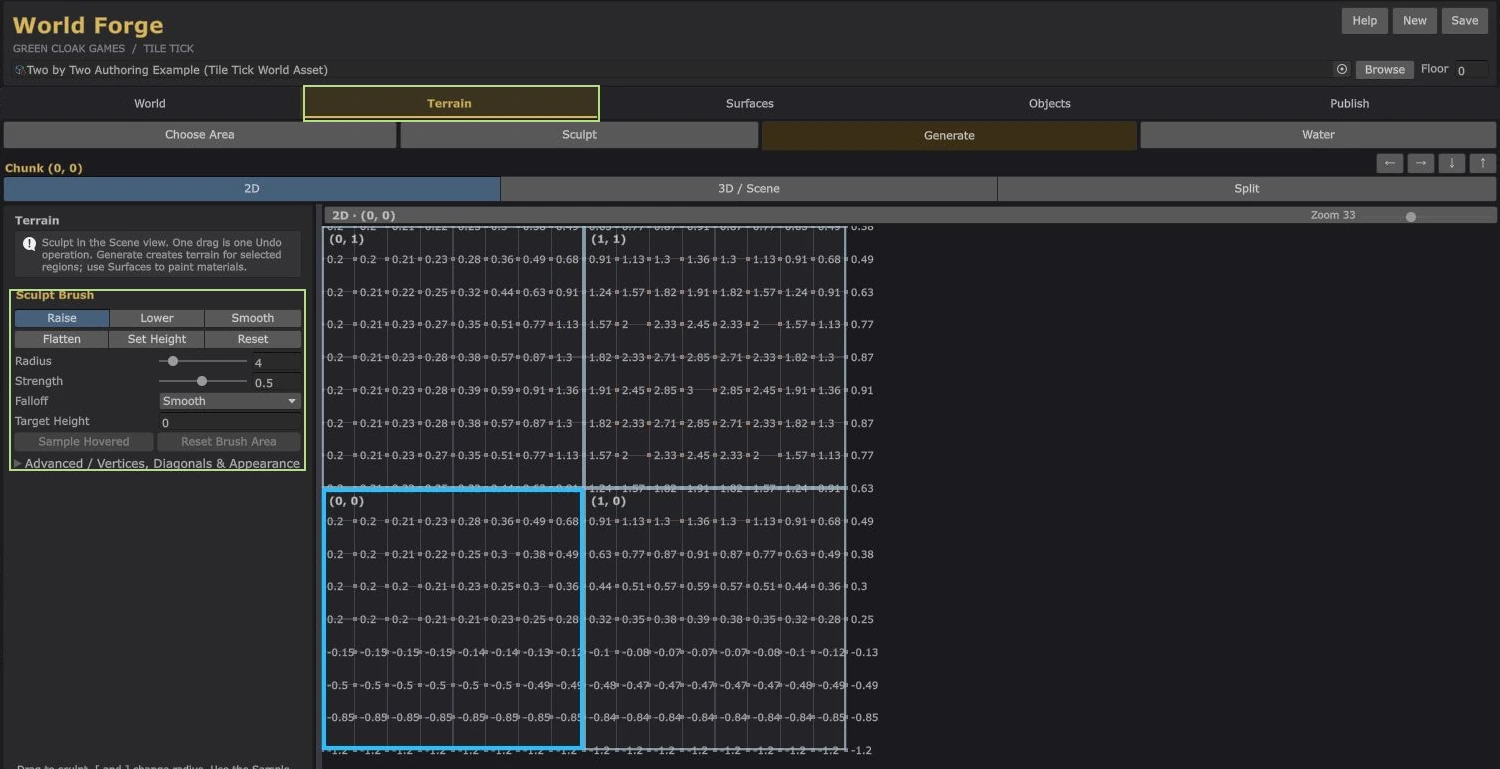
- Choose Raise, Lower, Smooth, Flatten, Set Height or Reset. Set Radius in world metres, Strength and Falloff. Flatten/Set Height also use Target Height.
- Hover over existing terrain and click Sample Hovered when you want to copy its height. Drag in the Scene view to sculpt. The [ and ] keys adjust radius.
- Inspect shared chunk borders and player-scale slopes, then Save. Reset tools overwrite the affected heights; use Undo if the result is wrong.
Paint tiles and triangles#
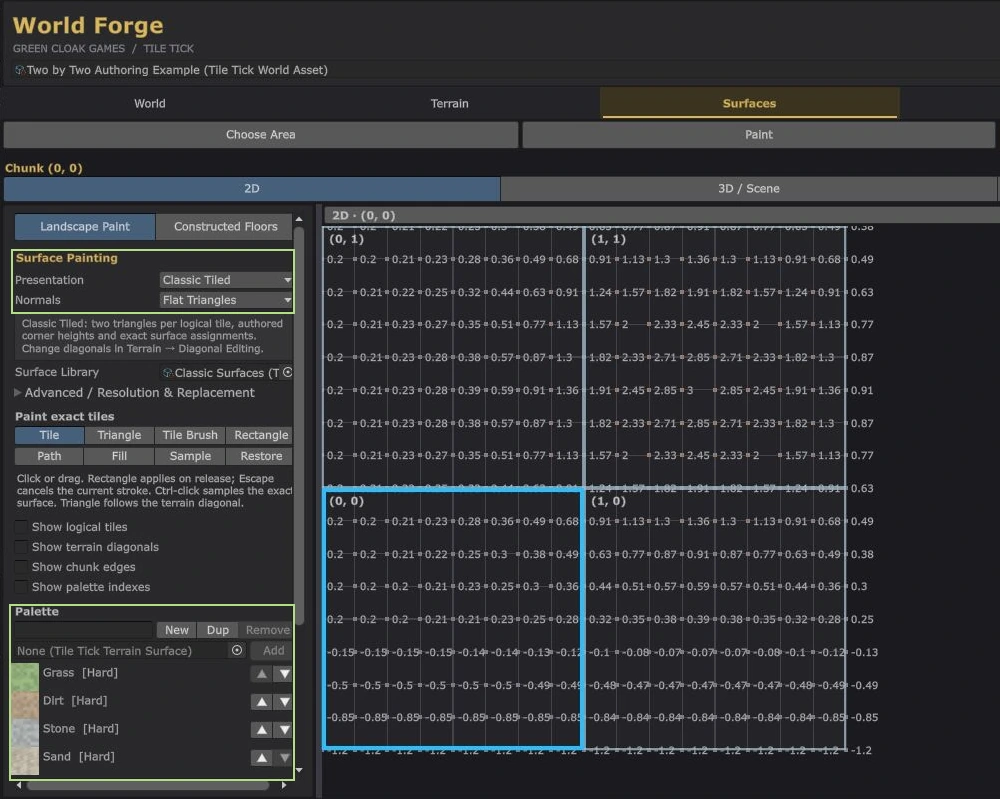
- Open Surfaces. Assign a Surface Library, or use Create Surface Library (Grass, Dirt, Stone) when no library is assigned.
- Choose Landscape Paint and a surface profile. Use Whole Tile to paint a complete tile, or Triangle to paint one triangular half. Click or drag to paint; Ctrl-click samples a surface. In Triangle mode, the nearest corner chooses the split.
- For larger regions, use Generate, review the surface-generation preview and confirm it. Painted IDs must resolve in the assigned library.
- For exact Classic Tiled ownership, inspect Terrain → Advanced / Vertices, Diagonals & Appearance → Presentation. Diagonal Edit, Flip Hovered and Auto Hovered change tile splits; review material ownership after changing a diagonal.
- Save, then rebake or republish to update consumers. Editing the world preview does not update an older publication automatically.
Materials and texture layers#
Create a profile with Assets → Create → Tile Tick World Editor → Terrain Surface. TileTickTerrainSurface stores a stable Surface Id, Display Name, a referenced Unity Material, and edge/projection/variation controls. Edit texture, normal and tint properties on that material. Shared material edits affect every profile/world using it.
Keep Surface Id stable after painting. Projection options include LegacyXZ, WorldXZ and Triplanar. This source uses the material's base texture scale X as uniform terrain tiling; nonuniform X/Y material scale does not map independently.
What you should see#
Confirmed generation updates the selected heights, sculpting refines them, and painted tiles/triangles resolve through the chosen library. Preview alone leaves authored terrain unchanged.
If something goes wrong#
- Wrong metres per pixel stretches horizontal terrain; wrong height minimum/maximum changes vertical relief.
FillEmptyChunksintentionally preserves existing authored chunks. Select the appropriate policy and inspect the preview.- Available floor levels do not create terrain patches on those floors.
- A missing surface ID or incompatible referenced material prevents the expected appearance. Changing shared materials or authored content requires a new bake/publication.
Next steps#
Place prefabs, draw constructed floors and add water, then bake or publish.