
Core RPG handbook · Development build / version notes
Core RPG handbook
Create a shop, conversation and quest
Build a small ingredient shop, give its owner a conversation, and add a quest that starts and finishes through dialogue.
On this page
Each part can work on its own. Make the shop first, try a short conversation second, then connect a quest once both interactions work. Use a supplied NPC and the demo’s managers so you can concentrate on the new content.
Make a shop that sells an ingredient#
- Open Tools → Green Cloak Games → TileTick Core RPG → Shop Database, then click New Shop.
- Set a unique Shop Id, a Display Name, and the actual Currency Item used by your demo. Currency Name Override changes its displayed name, not the item used for payment.
- Add a Stock entry with Raw Shrimp as Item. For this example, set Buy Price: 5, Sell Price: 1, Can Buy: enabled, Limited Stock: enabled, and Starting Stock: 5. Enable Can Sell To Shop only if you want the shop to buy shrimp back.
- Validate the definition. In NPC Database, create a Shopkeeper, enable Add Trade Action and assign this Shop.
- Place or spawn the NPC using your local or multiplayer setup. Keep the working ShopManager, shop UI and player session references.
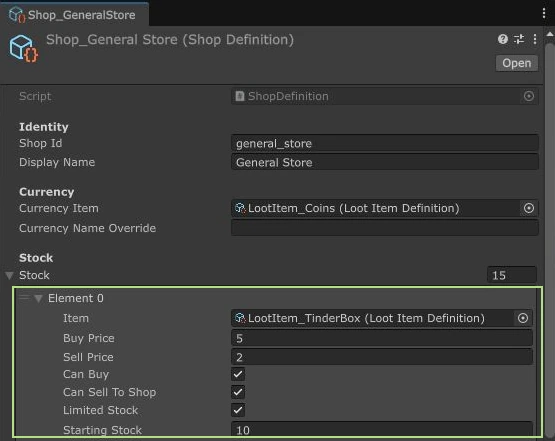
Give the player enough of the same currency definition and an empty inventory slot. Trade with the NPC and buy one shrimp. The inventory should gain one item, currency should fall by five, and stock should fall from five to four. Then try insufficient funds and a full bag. Using a different item with the same “Coins” display name won’t satisfy the currency reference.
Give the NPC a conversation#
- Open Tools → Green Cloak Games → TileTick Core RPG → Dialogue Graph Editor, click New, and save the conversation in your own content folder.
- Give the asset a unique Conversation Id and a readable Display Name. Confirm Start Node Id points at the starting node.
- Select that node. Set Speaker Name and Body Text, for example “Fresh shrimp today. Need supplies for the camp?”
- For the first check, enable End After This Node. Validate and save, then assign the conversation to the NPC’s Talk-to action.
- Talk to the NPC in the game. Once the line opens correctly, disable the immediate ending and add a second node or a player choice.
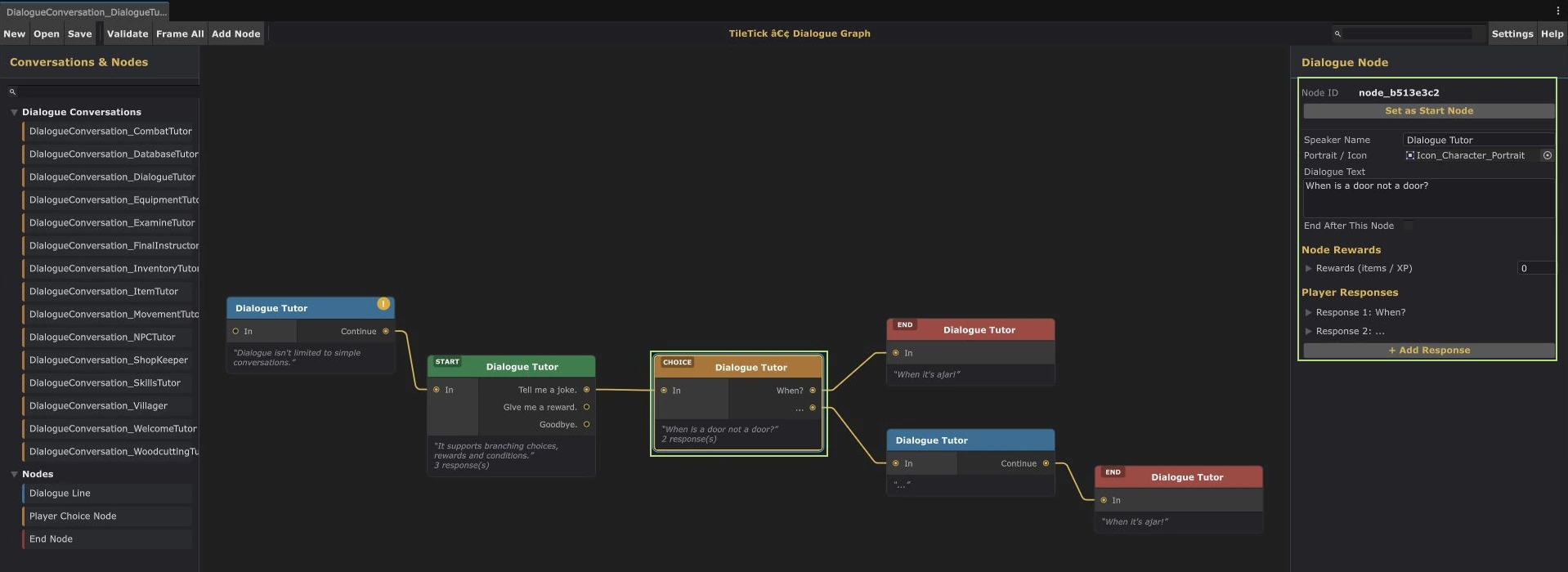
A choice needs Option Text plus a valid Next Node Id, or End Conversation. For a linear exchange, the node’s nextNodeId connects to the next line. Node IDs are identities, so check the actual destination rather than assuming the node order makes the link.
Choices can require a skill level, item or quest state. Node rewards run when that node is displayed; put valuable rewards behind an appropriate condition so reopening a conversation cannot grant them repeatedly.
Add a short dialogue-driven quest#
For a first quest, use explicit dialogue actions to start and finish it. This avoids needing a custom objective editor just to learn the quest and journal connection.
- Open Quest Database → New Quest. Set a stable Quest Id, a Display Name and Description.
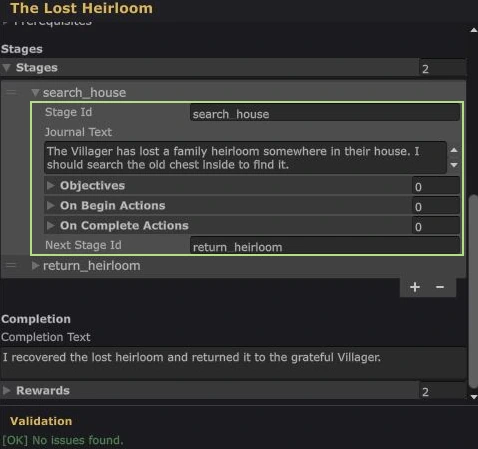
- Add one stage. Set Stage Id to
introductionand Journal Text to a short instruction to return to the NPC. - Leave this stage’s Objectives, On Begin Actions and On Complete Actions empty, and leave Next Stage Id empty. The first stage is the first list entry.
- Set any completion text and rewards. Review the QuestDatabase’s Quests list, especially if your project contains more than one database. New Quest normally adds the definition to the first database it finds.
Open the conversation asset in the ordinary Inspector. If the graph doesn’t expose the quest controls, use the native fields below Edit in Dialogue Graph. On its node Choices, add:
| Choice | Quest Conditions | Quest Actions |
|---|---|---|
| Offer the quest | Kind: NotStarted; assign your Quest. | Kind: StartQuest; assign the same Quest. |
| Finish the quest | Kind: AtStage; same Quest; Stage Id: introduction. | Kind: CompleteQuest; same Quest. |
| A farewell after completion | Kind: Completed; same Quest. | No reward action needed. |
Completion already grants the quest rewards and records that they were claimed. Don’t add a second GiveRewards action for normal completion.
Walk through it as a player#
Use a fresh character. Accept the quest, check the journal, reopen the conversation and choose the stage-gated finish response. Check the reward once, speak again, then save and reload. The offer should no longer be available after completion.
If a quest choice does nothing, check the Quest reference, exact Stage Id and the ready authoritative QuestEngine. If a choice never appears, inspect its condition before changing the conversation links. If the journal loses the quest after loading, check its stable ID and database/registry membership.